Add A Network Printer: Difference between revisions
Jump to navigation
Jump to search
No edit summary |
No edit summary |
||
| Line 11: | Line 11: | ||
3. Double-click the printer(s) you need. The drivers will install and you should be able to print immediately in Windows. | 3. Double-click the printer(s) you need. The drivers will install and you should be able to print immediately in Windows. | ||
*''NOTE: If you need this printer in GP, you will have to sign out and back into GP for it to be visible.'' | *''NOTE: If you need this printer in GP, you will have to sign out and back into GP for it to be visible.'' | ||
<gallery> | |||
File:Add a Network Printer - Knowledgebase.jpg|Start Button and Command | |||
File:Omuprint list.jpg|List of Available Network Printers | |||
</gallery> | |||
Revision as of 08:59, 28 August 2023
Adding a Network Printer
1. Click on your Windows Start button and immediately type \\omuprint and hit Enter.

2. A window should pop up showing all available network printers.

3. Double-click the printer(s) you need. The drivers will install and you should be able to print immediately in Windows.
- NOTE: If you need this printer in GP, you will have to sign out and back into GP for it to be visible.
-
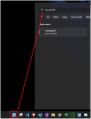
Start Button and Command
-
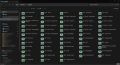
List of Available Network Printers